


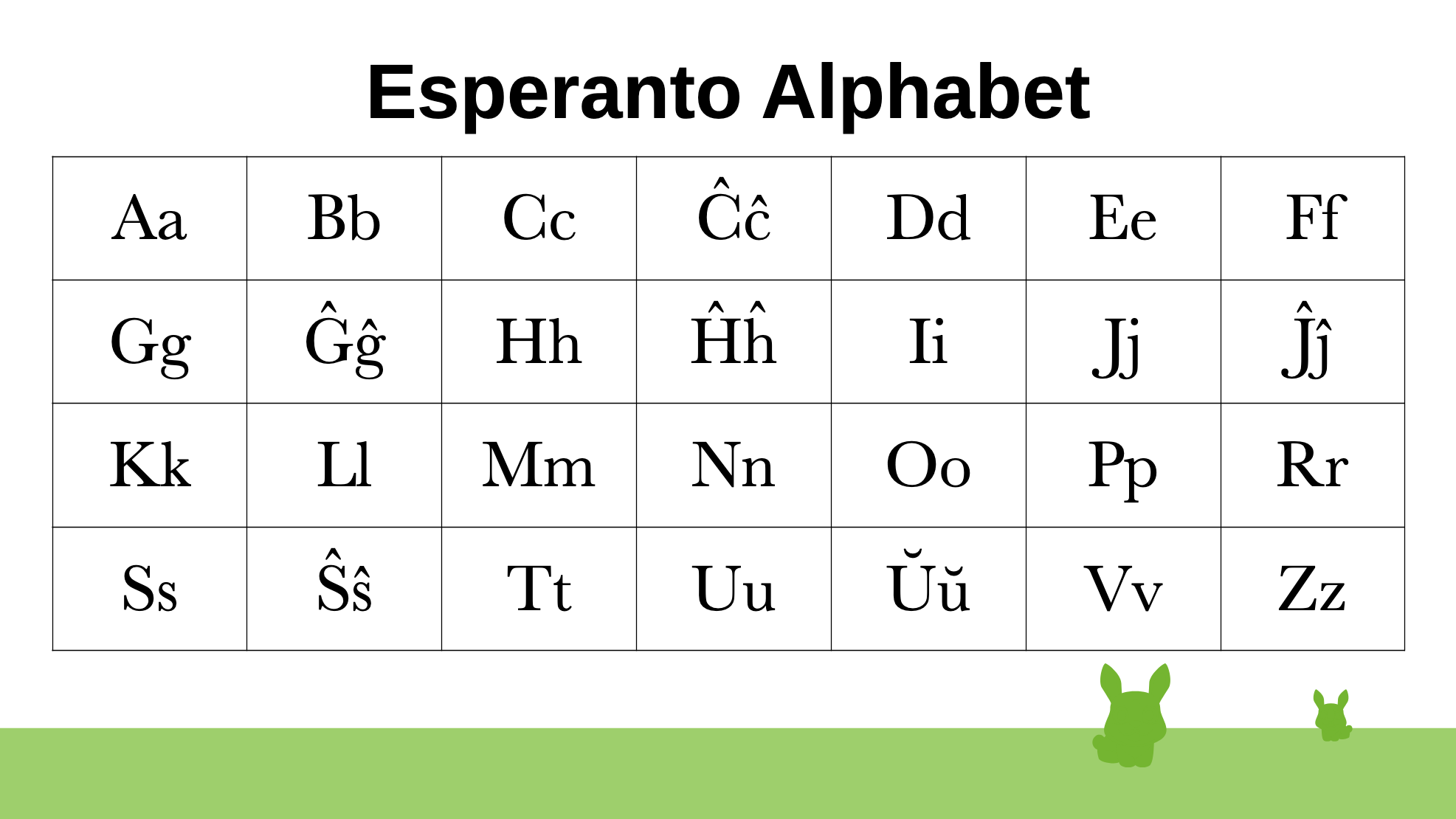
Esperanto Letters
Esperanto uses an alphabet that is somewhat familiar to most Western language speakers, but with some special characters included.
Those characters, with a “hat” or a “smile” above them, are meant to be pronounced differently from those without, so the accents serve a purpose.
The background for having these special characters is that the inventor of the Esperanto language, Louis L. Zamenhof, wanted each letter to represent one sound, and every sound to be represented by one letter.
As you may have noticed, many languages do not have that harmony in their pronunciation – a word like “journalist”, for instance, when pronounced by an English speaker, will sound more like id it began with “dj”, rather than just a j, while the same word pronounced by a French speaker will sound like it began with “sj”.
Of course, each of us, being used to a particular, native, language, will feel that this is how that letter sounds. But the point here is that Zamenhof and the rest of us, who want to use Esperanto across the world, want one way of saying it. Those special letters in the Esperanto alphabet help making that possible.
Esperanto also has no silent letters and no change of sound of individual letters if they are placed before or after some other letters – also, there’s no “long” and “short” version of a sound. Just learn the sound of each letter, say these sounds after each other as written in any Esperanto word, and you will do it right!
There are diphtongs, though – j and ŭ after a vowel makes it a joint sound, or sound flow, also described as “sliding vowels”, for the following combinations:
aj – ej – oj – uj – eŭ – aŭ
An example is “kaj”, which means “and” – there really is no way to pronounce that without diphtong’ing it.
Reading the Alphabet Aloud
The tradition for Esperanto is to add an “o” to consonants, and say the vowels as they are. This then becomes “A, Bo, Co, Ĉo, Do, E, Fo, …” etc.
You can get the best impression of how this works through audio files, and there are some good ones at the Lingolia site’s Esperanto part:
Pronunciation and the Alphabet in Esperanto
Some more details on how to pronounce the letters can be found at Lernu’s page Letters.
The diphthongs are explained and pronounced by American Esperantist in the YouTube video Esperanto Diphthongs (mini lesson).
Writing Esperanto
You can easily write these letters by hand, but what to do when using your computer or a mobile phone?
It depends on the device. And for each device, there has been developed several different ways of doing it, but I will here describe one way for each of the most common devices/operating systems, so that you have something to start with:
Apple Mac with macOS
On a Mac with macOS, you can install a small extra program called Esperanta Klavaro, which you can find on and install from its Github page.
After installation, you’ll need to start the app, and that will give you a small icon in the system bar on top of the screen. Clicking on it will open a menu, and you can push Start to engage the Esperanto keyboard functionality. The Start menu item will then be replaced with Pause, and you can use that when you want to get the normal keyboard functionality back.
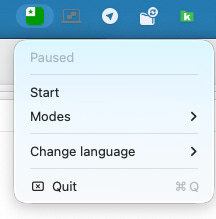
In order to then type one of the special characters from within any program that accepts keyboard input – like Word or Apple Notes – you simple hold down the Option button on the keyboard and press the corresponding letter. Option + g will, hence, produce a ĝ. For capital letters, just hold the shift button along with the option button: Shift + Option + g will give you a Ĝ.
If you prefer, you can change the behavior:
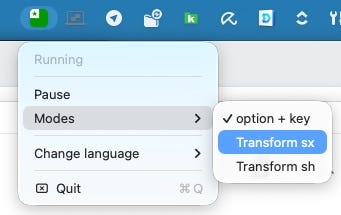
Sometimes, it may be more practical to use the x or h options instead. When this has been chosen, you simply type normally, but if you want to type, say, a ĝ, you just type gx or gh, depending on the option you have chosen, and it will then be automatically converted on the fly, on your screen, to a ĝ.
This is a mechanism you will see in other places as well, for instance in the Lernu.net course, and it can be good when, for instance, you still want access to the other alternative characters that are normally present on the Mac by the help of the option key.
The idea of using an h after the letter to be converted was introduced all the way back when Esperanto was invented, in the late 1800s – back then, people couldn’t write the special characters on their typewriters, so they did it this way instead, and everybody back then knew what it meant.
Later, when computers were introduced, the x version was invented – since x isn’t used at all in Esperanto, it is safe for the computer to assume that whenever it sees one, it means that you want to convert the previous character to a special Esperanto character. While, in contrast, there are some examples of Esperanto words that have a combination with h in them that shouldn’t be converted. So, x is the better option with computers.
Apple iOS on iPhone
Esperanta Klavaro is available also on iOS, i.e., the iPhone, and there you’ll need to install it from the App Store, and then go to Settings/Keyboards to add it to the list of installed keyboards.
The app itself has some functions, including a test function where you can try and see if the keyboard has been installed correctly:
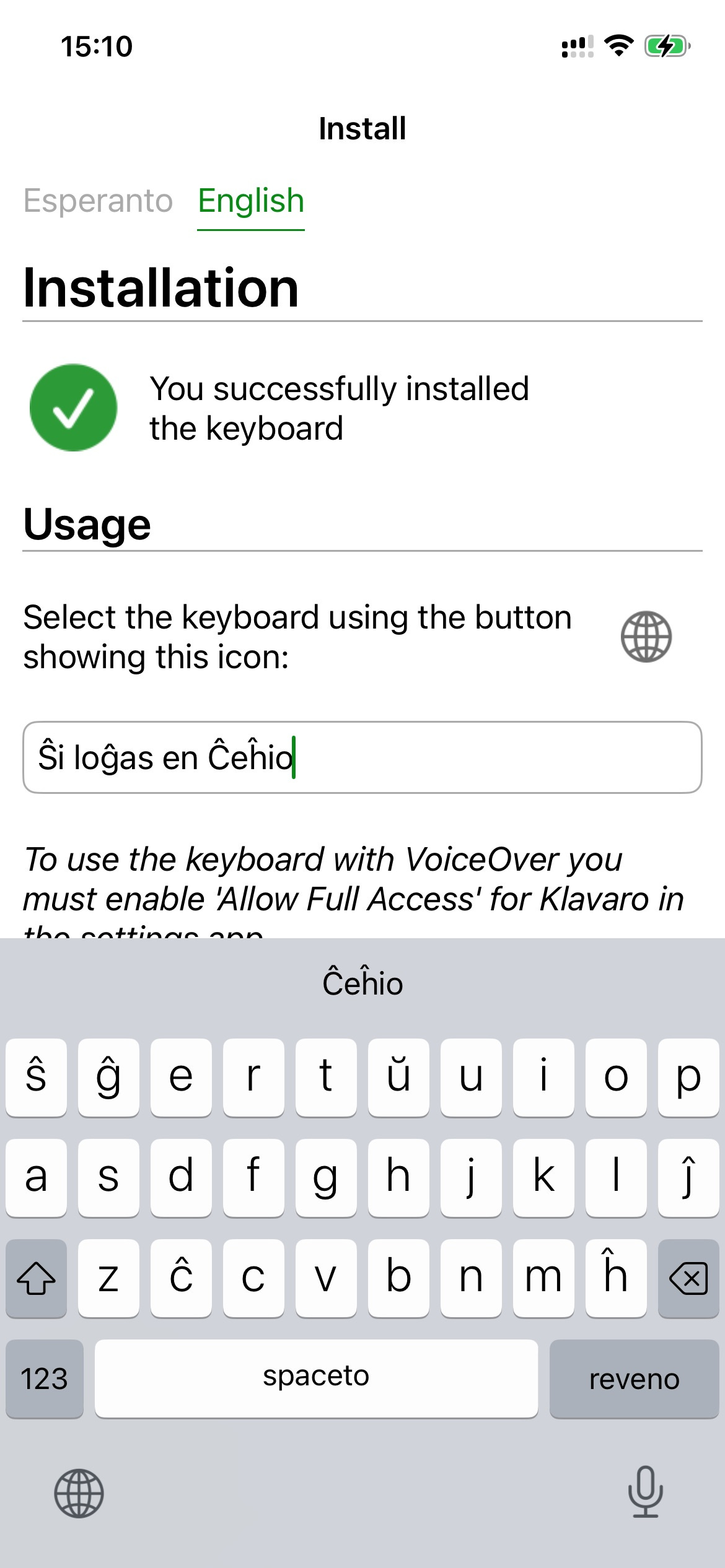
Some iOS keyboards nicely tell on the space bar which language it is for, but this one doesn’t tell that, so when you look through the different keyboards (through the globe icon in the lower left corner) to find the right one to use, then pay attention to the layout instead of the name.
You may need to change the keyboard in each individual app where you want to use it, and maybe again the next time you open that app.
And just to be clear: I assume that this app will work the same way on an iPad, but I don’t have such one, so I can’t try it out.
Microsoft Windows
For Windows, you can find a similar Esperanto Klavaro, also on a Github page, and here you’ll need to get the files, then go to the settings page and define Esperanto as the language of the computer. This works differently on different Windows versions, but on Windows 11, you’ll start by downloading the files from Github and putting them on your computer, in a place where you can find them, for instance like this:
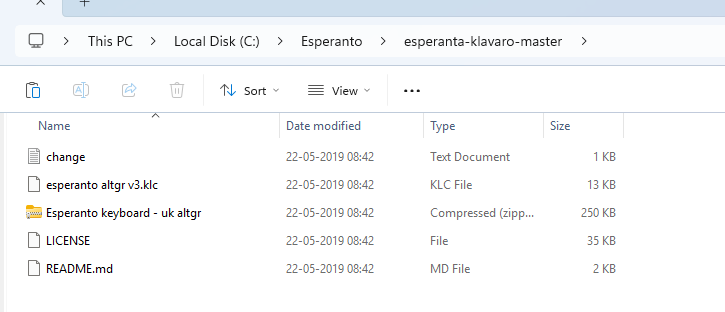
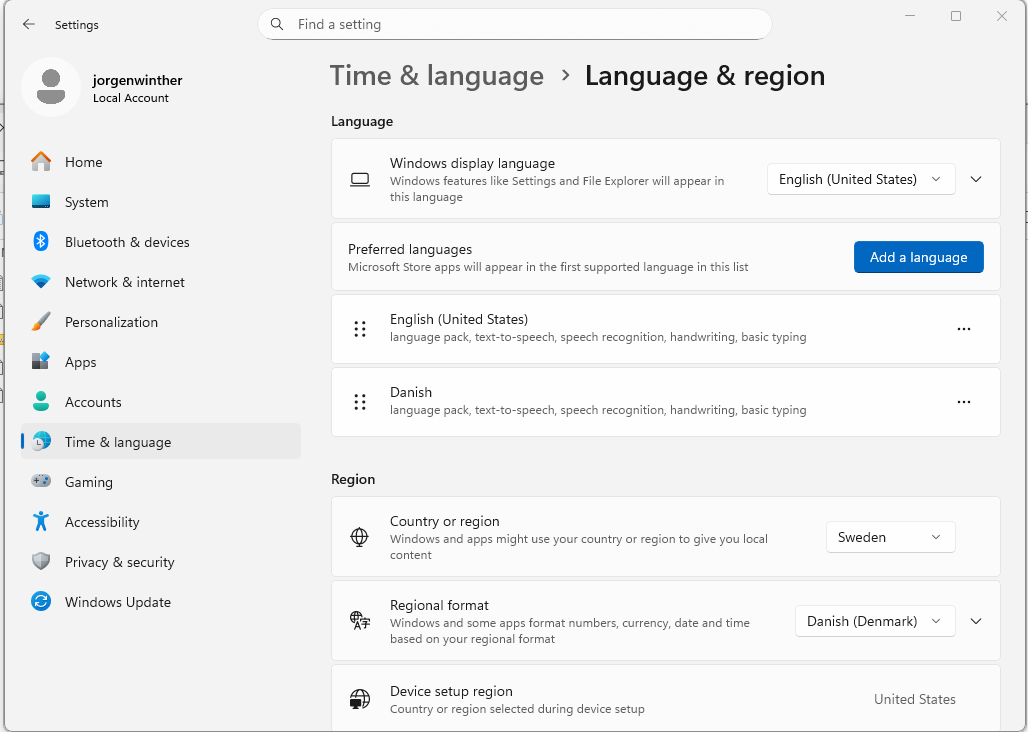
The setup then takes place in the Windows settings app, on the Language & region settings page:
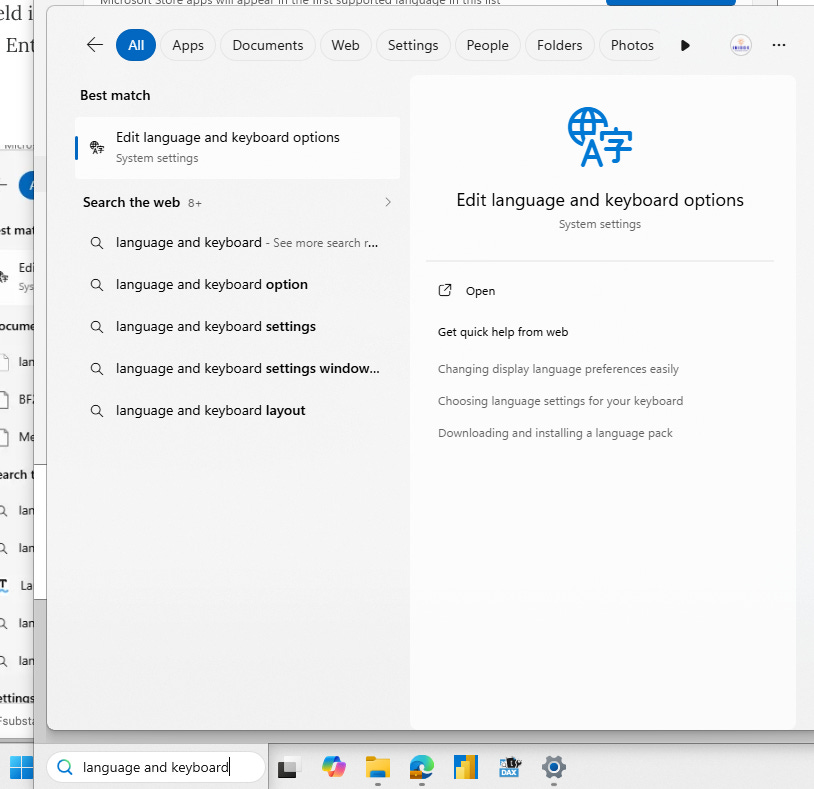
Hint: you can open those settings in different ways, but one is to use the search field in the taskbar at the bottom of the screen – type “language and keyboard”, press the Enter key, and you’ll get a link to the correct page:
On the settings page, you’ll simple push the button “Add a language” and then either select Esperanto, or, if it isn’t in the list, you should then be allowed to pick the keyboard definition file you downloaded – the file that ends with “.klc”. In some installations, this isn’t possible, but you may have the Esperanto keyboard available anyway, so just check the list and see if it is there.
If you succeed, there will then be, along with other languages you have set up, an option to choose the current language in the taskbar:
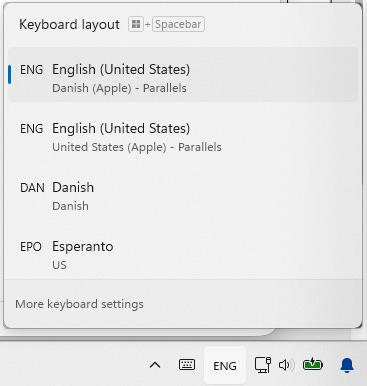
When Esperanto is selected, you can in your apps, where you are writing, hold the AltGr button on a Windows keyboard and press the corresponding letter, i.e.: AltGr + g will produce a ĝ, and together with the shift button, i.e., shift + AltGr + g, it will produce a capital Ĝ.
Please note a few things about Windows and the keyboards installed:
Windows may change the set language when you change your focus to another app, so you may want to have a glance at the taskbar before you start writing.
If you used the downloaded keyboard definition file, the keyboard will now be a UK keyboard, just with those extra Esperanto characters, so you may not have everything else on the keyboard where you would expect it.
Windows 11 may have an Esperanto keyboard definition already, so you may not need to download one.
You can switch between the different languages and keyboards installed at any time, also while in the middle of writing a phrase. There are shortcuts for this.
If you use Windows through Parallels on a Mac, the Mac installed Esperanta Klavaro may also work automatically on that Windows installation – I suggest trying that out before setting up anything specially for the Parallels Windows installation.
You can switch between the languages you have set up on Windows by a hotkey instead, typically set to Left Alt + Shift. This can be changed, but it’s hard to find where to do it: first, you must locate the advanced settings for Typing:
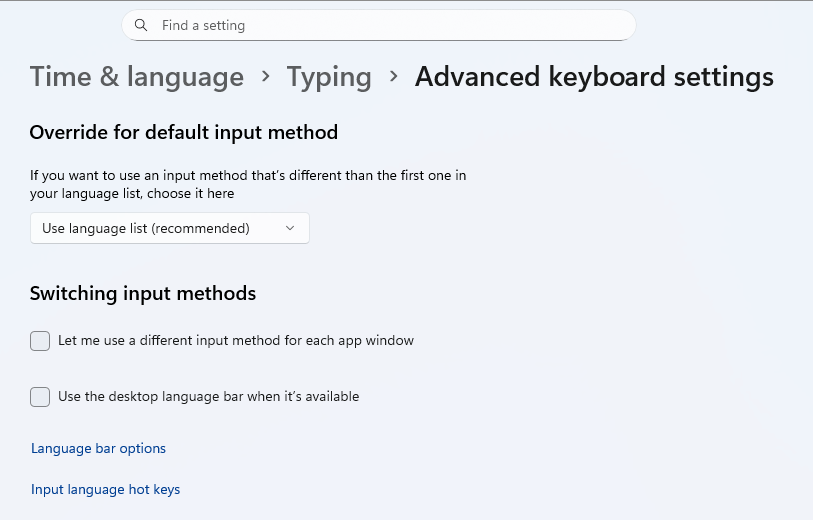
And there, at the bottom of the window, click on Input language hot keys, which opens a separate window showing a list of your defined hotkeys.
Linux
Most Linux distributions have Esperanto built-in from the start, so you don’t need to install anything – just set it up in the Linux settings, like any other keyboard.
Android
There are many keyboard apps in use on the Android platform, and some of them support Esperanto, others do not. But what you should do is go to the Android settings, find where to set up keyboards on exactly your device and Android version, and let Esperanto be one of the keyboards you set up.
If it doesn’t work after that, you’ll know that you should look in the Play Store for a different keyboard app – read then carefully in its description if it supports Esperanto. Or search the Internet for modern advice – be aware that a lot of information you’ll find this way can be several years old and no longer correct.
But all this considered, as a basic rule, you do not need to install any extra apps on Android to get an Esperanto keyboard, you simply need to use just one and the same keyboard app for everything – just make sure that it is one that can handle Esperanto.
I have only older Android devices, so I will not show examples here, because your device will no doubt look different. But you should feel confident that it is possible to set it up.
More guidelines
Many people have given advice on keyboard settings, so here are a couple of them, to supplement the above:
«ŝgertŭ» – covers all platforms. At the time of writing this, it was last updated in 2022, but maybe what you need is still up-to-date
Esperanto Association of Britain: Esperanto’s Special Letters – guidelines for several platforms, plus an X-remover page, where you can write with x’es (or other signs), as described earlier, and it will convert it for you, directly on the web page, so you can copy/paste it to where you need it.